Audio Player
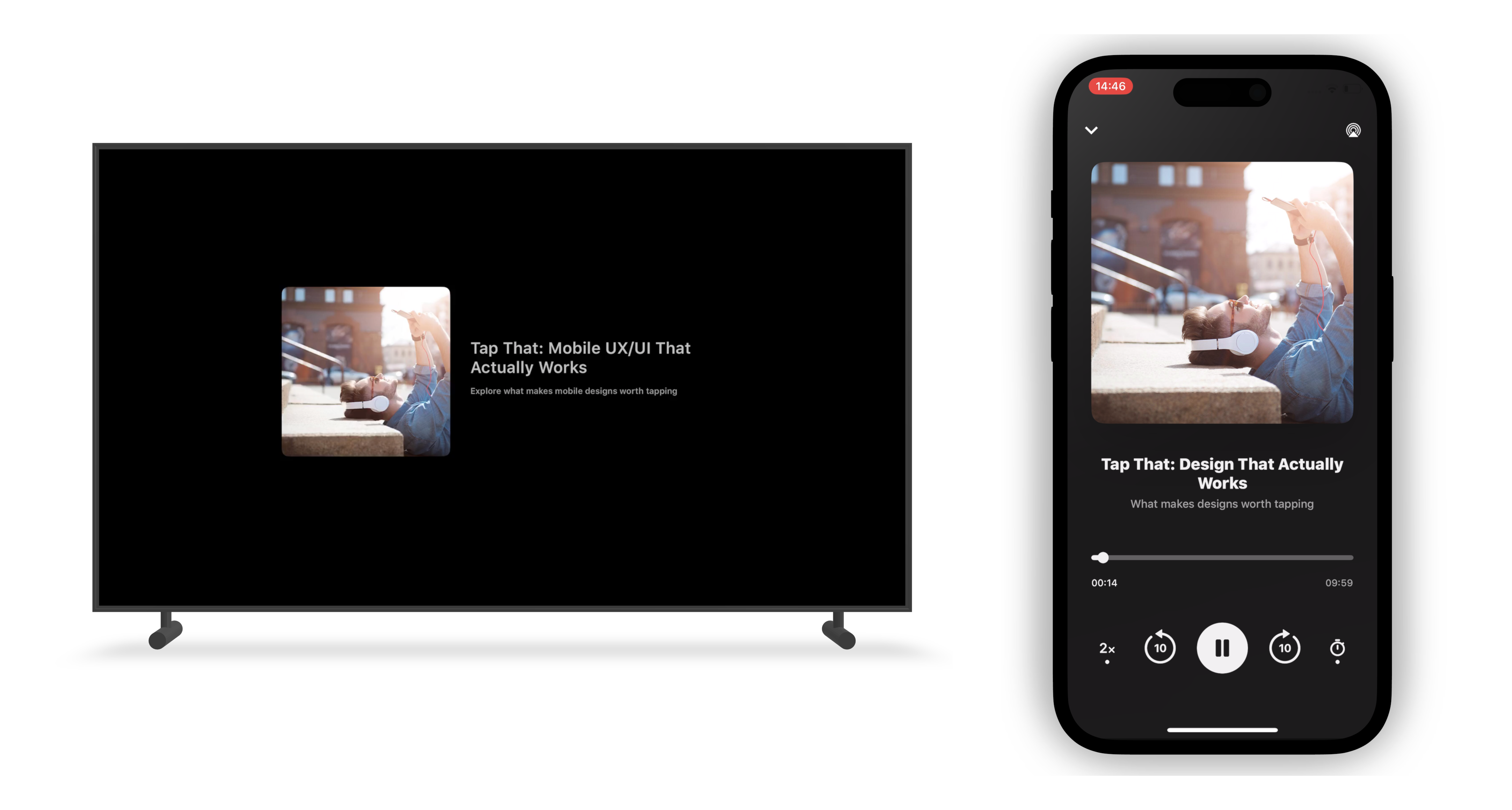
Our player supports audio content across all platforms.
TV: Single player layout for both video and audio content.
Mobile: Two player options are available:
-
Full-Screen Audio Player (recommended )
-
Inline Audio Player
We recommend using the full-screen player for a richer audio experience and access to all features.
Full-Screen Audio Player (Mobile)
Features:
-
Sleep Mode
-
Playback Speed Control
-
Background Playback
-
Supports both Live and AOD (Audio on Demand) content
-
Mini Player Mode
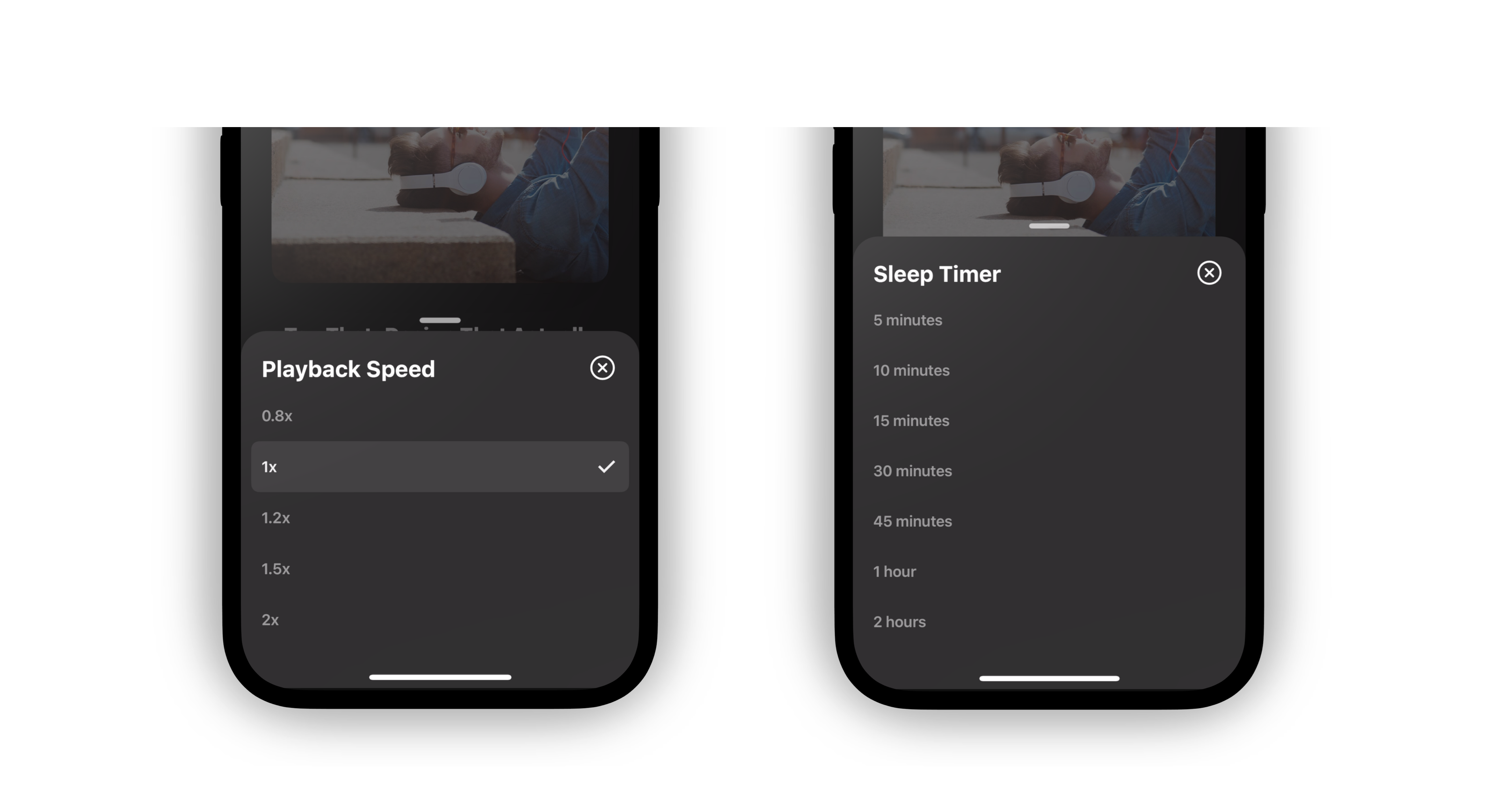
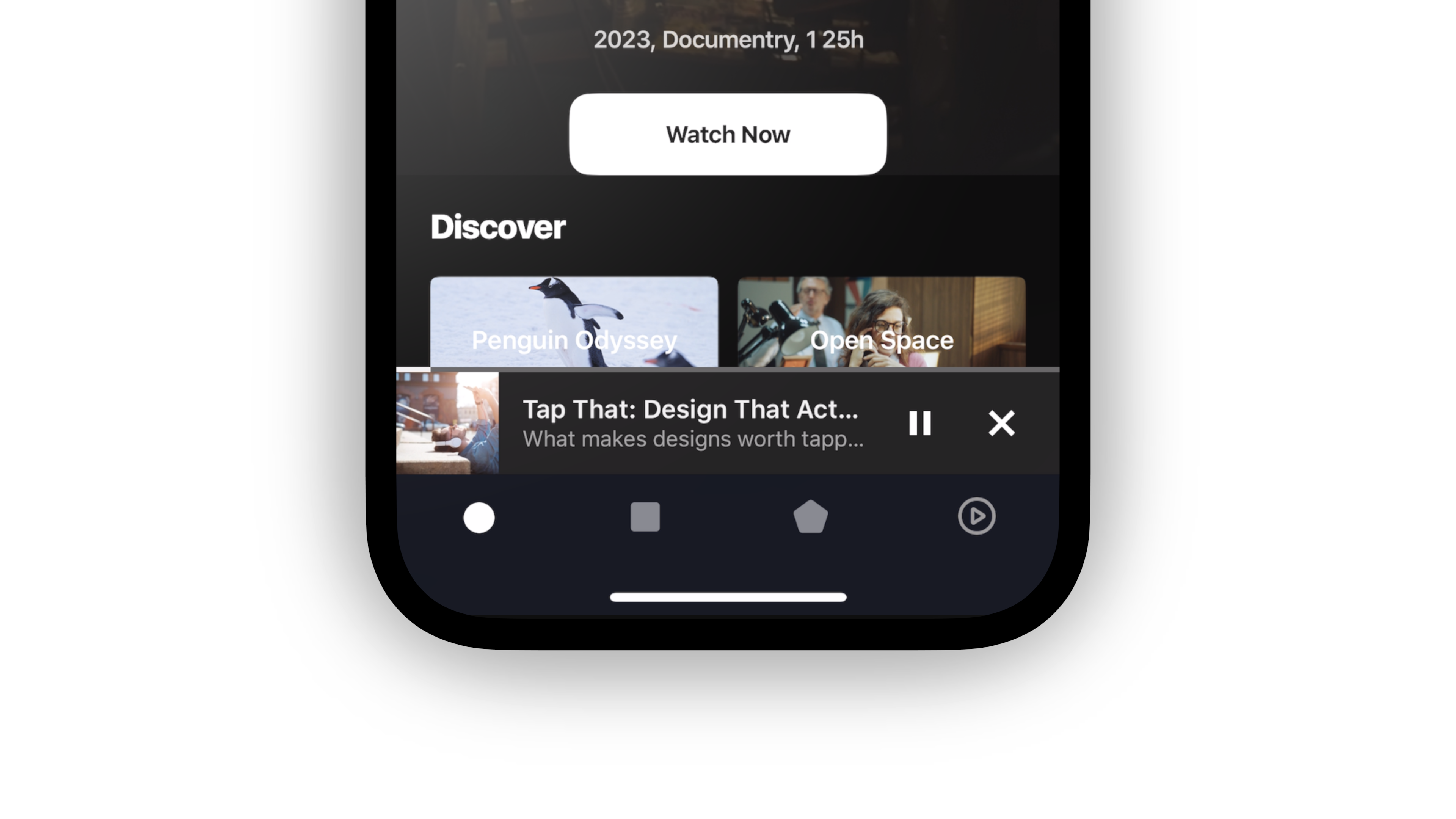
To add a full-screen audio player to your app:
-
Open your layout in the Studio.
-
Click “Add a Screen”.
-
In the “Presets” tab, select “Audio Player”, then save.
-
Connect the screen to your DSP using type mapping:
-
Go to the Type Mapping section.
-
Select the screen you just added.
-
Assign the relevant type from your feed (e.g., "audio").
To be recognized as audio content, the audio type must contain the word audio. For example: audio-2, audio-sports, etc.
- For live audio content, include the following extension in your feed:
{
  "live": true
}
The audio player uses a 1:1 image ratio (not the standard 16:9 used for video).
Inline Audio Player (Mobile)
The inline audio player uses the same video player screen as used for video content.
To configure:
- In the Studio, go to the “Audio Player” section and upload an image placeholder to display during audio playback.

- Enable background playback to allow audio to continue playing when the app is minimized.
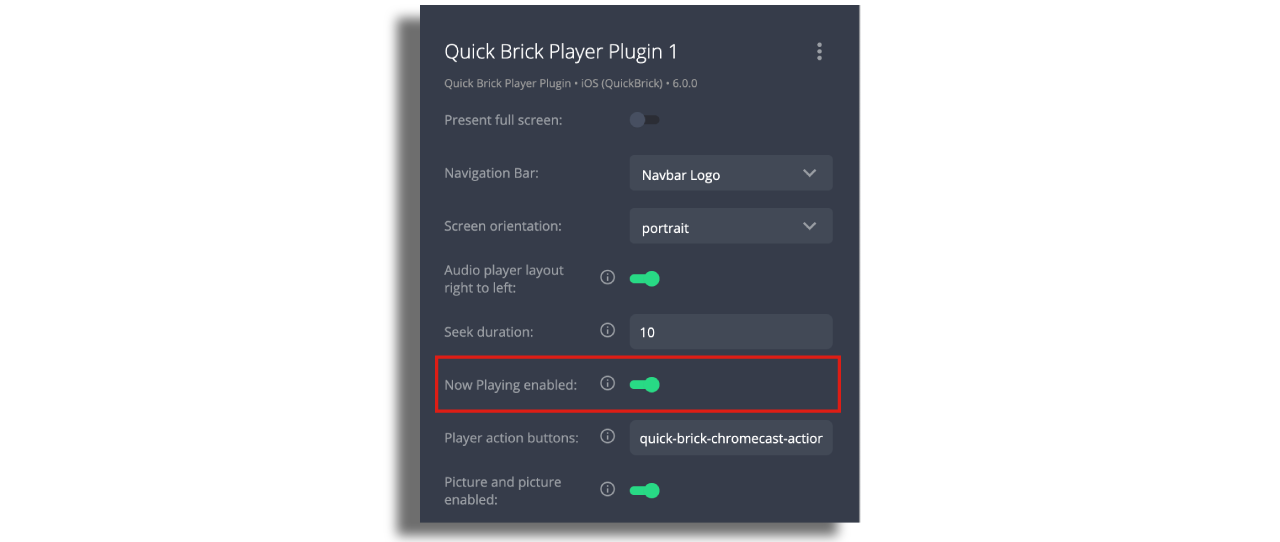
The inline player supports basic audio playback. For advanced features like Sleep Mode and Playback Speed Control, use the full-screen audio player.
Audio on TV
For TV apps, use the video player, which supports both video and audio content. No additional configuration is needed for audio playback.
The audio player's background on TV can be customized using the following options:
-
Background Color: A background color can be defined using hex format and opacity. If left empty, the default color from the app's theme will be used.
-
Background Image: A static background image can be uploaded in Zapp. If no image is provided, the background color will be used as a fallback.
-
Dynamic Background Image: The
audio_player_background_imagekey allows an image from the feed to be used as the background, overriding the background image or color configured in Zapp.
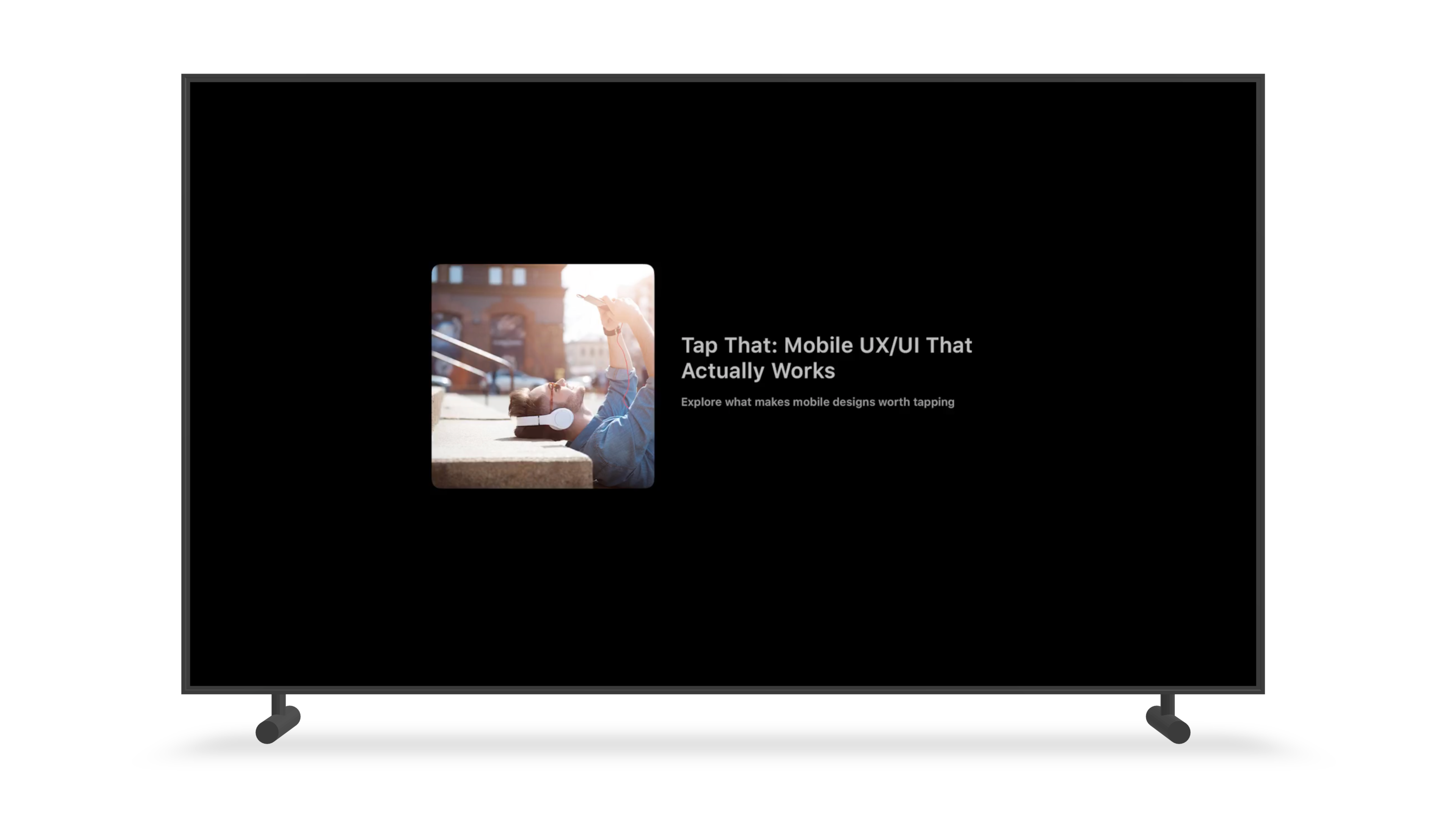
The audio player uses a 1:1 aspect ratio for the item image (artwork), rather than the standard 16:9 used for video.